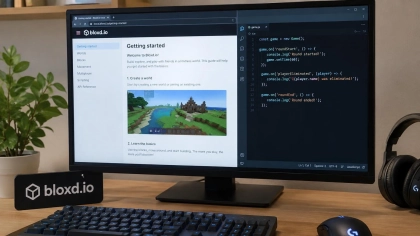
A Bloxd.io shader pack can give blocks warmer light, make lava glow, or animate water, but it does not add textures or alter the appearance of the sky, characters, mobs, or objects. Bloxdhub’s beginner’s guide explains how to create the ZIP and which rules it must follow for the game to accept it.
What a shader pack changes
A pack modifies the world’s lighting: it can adjust the light color, soften shadows, or change the brightness of surfaces. Bloxdhub distinguishes this system from texture packs, which are used to modify the images applied to blocks.
The effect is limited to elements processed by the WebGPU renderer: solid blocks, water, and lava. The sky and characters are excluded, as are mobs and objects, according to Bloxdhub’s guide. Some matches also disable shaders, so the result may vary depending on the game mode.
The unofficial community documentation for the API describes three rendering groups: terrain, liquids, and models. There are nine hooks in total, meaning functions with specific names that the game invokes to modify particular parts of the rendering. You do not need to use all nine for a first pack: simply change the hook that corresponds to the desired effect.
Prepare the files and ZIP
The starting point is a folder containing a pack.json file and one or more .wgsl files. The pack.json manifest identifies the package: it must specify apiVersion with the value 5 and a name. The author field is optional, according to the Prism Shaders community reference; Bloxdhub also includes it in its initial example.
The WGSL files contain the hooks. They can be split across multiple files, and Bloxd processes them in alphabetical order. Then, compress the folder—or its files—into a ZIP.

The unofficial documentation says that the engine automatically adds the API definitions when loading the pack: creators only write the hooks they want to modify. WGSL is the shading language used by WebGPU; the documentation describes it as familiar to people who have programmed in JavaScript, although it requires explicit types and distinguishes, for example, integers from decimals.
Avoid proper names that start with “bloxd,” because they are reserved for the game, and do not reuse built-in names or reserved words. Bloxdhub also warns that @ attributes, textures, or samplers added by the pack are not allowed, nor are uniform or storage variables. The code must conform to the API, not to a generic shader written for another engine.
Start by changing the light
Bloxdhub recommends starting with bloxdTerrainLight, the hook that modifies the final light and color of solid blocks. The bloxdDefaultLight function serves as a starting point: it returns the game’s normal result, which you can then adjust without rebuilding the entire lighting structure.
For a first test, the guide suggests slightly warming the light on all blocks by increasing the red channel and reducing the blue one a little. The idea is to change only the part you want while preserving the rest of the engine’s calculation. The Prism Shaders reference makes a similar recommendation: start with the default functions instead of manually rebuilding data that the engine already provides.
The right hook depends on your goal. Terrain handles blocks, except water and block models; liquid hooks handle water, while model hooks cover elements such as plants, objects, players, and mobs. Lava is rendered along with blocks, so terrain hooks can affect it too.
To change a surface’s color before applying light, use bloxdTerrainSurface; to move terrain vertices, use bloxdTerrainVertex. For water, bloxdLiquidSurface changes color, transparency, and brightness, while bloxdLiquidVertex can move its vertices to create waves. Choosing the right hook prevents you from trying to modify an element that a function does not process.
Glowing lava and animated water
Bloxdhub’s guide suggests using block properties to identify light-emitting lava. The available flags indicate characteristics such as opacity, emission, vegetation, dirt, sand, or rock; they are queried as true or false values. The flags describe the material, and a block can have several at once.
The lava example adjusts the emission of surfaces that glow and are not opaque. This is intended to make the lava retain its glow even at night. Since lava is part of the terrain and not water, the effect is applied through a terrain surface hook, not a liquid one.
For waves, the example moves water vertices vertically with a periodic function based on time and position. But there is an important condition: strict modes keep geometry still. Bloxdhub requires a vertex hook to be inside the #ifndef BLOXD_STRICT directive; otherwise, the pack may be disabled in strict matches, which are the majority according to the guide.
Test the pack before sharing it
Bloxd checks the pack in several variants before running it: Bloxdhub describes six combinations across normal and strict modes, blocks, liquids, and models. If a check fails, the pack does not load; when entering a match, the browser also compiles the code and may apply stricter validation.
Errors noted in the guide include directly modifying a hook input, manually constructing structures that should come from the default functions, and using restricted functions outside the permitted context. Operations that mix certain mathematical and bitwise operators must also be put in parentheses: Bloxd’s validator may accept them even if the browser rejects them.
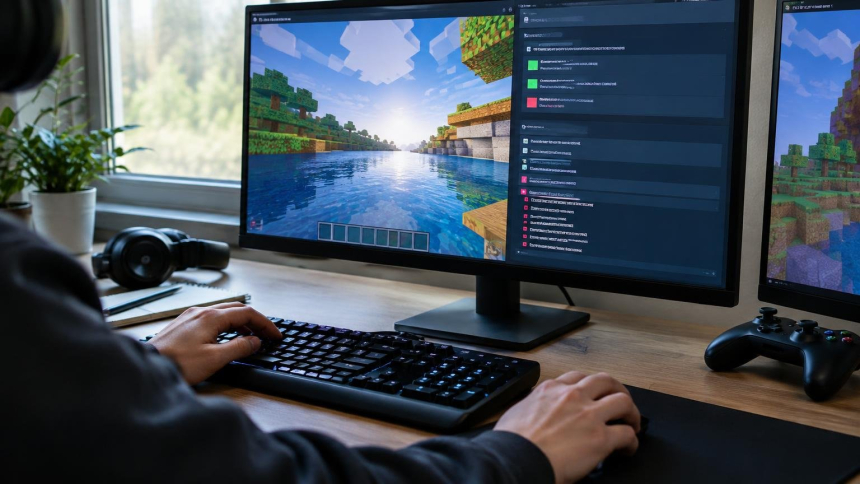
The unofficial community documentation recommends testing first in a permissive match and then in a strict one. Its quick-start guide says that when you select the pack, the status “Ready. Reload the page to use it.” may appear; after reloading the page, “Ready to use” indicates that it is ready. If errors appear with a file, line, and variant, fix them and load it again.
To load it, Bloxdhub says to open Settings, go to Shader Pack, and select the ZIP using current versions of Chrome or Edge, the browsers mentioned for WebGPU. The unofficial quick-start guide adds that loading a folder directly is only available in desktop browsers. The WebGPU renderer is required: packs do not work with the previous renderer.
The Bloxdhub Workshop validates the file and may reject packs that do not work, turn the world black, or produce no changes. It also generates before-and-after comparison images, as well as close-ups and views of the water, sunset, and night. The guide recommends uploading the finished ZIP there, in the Shader Packs section.
API 5 and compatibility with older packs
Bloxdhub warns that API 5 is required: packs created for earlier versions no longer load. The unofficial documentation agrees that versions 1 to 4 are rejected when loaded; it adds that saved packs may become inactive without warning. Bloxdhub notes that when you upload an old pack to the Workshop, it offers to update it.
Version changes affect function names and data. In API 5, for example, block flags are received as true or false values; a lighting directive was also replaced by the bloxdLit() function, and only liquid hooks run on water. Version 5 adds hooks for models, including plants, objects, players, and mobs.
Compatibility history matters most when starting from an existing pack. Bloxdhub also lists API 4 changes, such as renaming functions related to block position and fog, and API 3 changes to time and displacement functions. For anyone starting from scratch, the practical guidance is to keep apiVersion at 5 and check that the pack loads in the game and in the Workshop.
The unofficial community documentation and Prism Shaders expand the list of capabilities to include reading existing textures and specific effects for models; they also describe limitations such as the lack of post-processing and real reflections. You do not need to cover that whole catalog for a first creation: simply choose a specific effect, modify the corresponding hook, and check that the ZIP passes Bloxd’s tests.
Sources: Bloxdhub, Bloxd.io Shader Pack Documentation (unofficial), Bloxd.io Shader Pack Documentation (unofficial), Bloxd.io Shader Pack Documentation (unofficial), Bloxd.io Prism Shaders